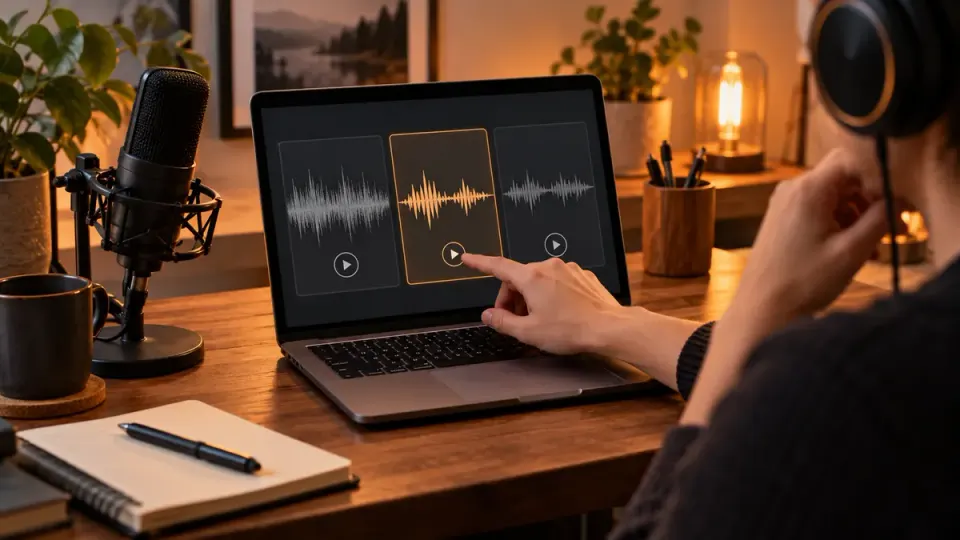
Choose an Adobe Podcast Enhance Speech alternative by identifying what your recording needs: steady-noise reduction, more manual control, or a broader speech-enhancement workflow. Audacity offers a noise-profile approach when you can work with a separate audio file. NoiseVanish is a candidate for reducing steady background noise in spoken video or audio, not a replacement for every Adobe Podcast feature. Keep Adobe when its current workflow already produces an acceptable result. Compare a normal sentence, quiet speech and the hardest overlap at similar listening levels; reject any version that removes important words or sounds unnatural, even if its pauses are quieter.
Scope, evidence and publisher disclosure
This guide is written by the NoiseVanish Editorial Team, and NoiseVanish is one of the options discussed. It is a task-based comparison of official documentation checked on October 7, 2026, not an independent laboratory ranking. We did not process the same recording through every service or measure their accuracy, speed or subjective quality. The listening method below is a reproducible procedure you can apply to your own material, not a report of completed tests.
The scope is an existing spoken recording: a tutorial, interview, presentation or course video. It is not podcast generation, live microphone filtering, automatic transcript editing or music mastering. A tool can be a useful alternative for one cleanup task without replacing an entire production suite. That distinction matters when a comparison page calls everything an “audio enhancer” but the products actually solve different problems.
First write down why you want to switch
Describe the failure in one sentence before comparing tools. “The room fan competes with quiet words” is actionable. “The output sounds artificial” calls for a speech-preservation comparison. “My plan does not accept this video” is an eligibility or file-workflow question, not evidence that the enhancement algorithm is poor.
Also identify what must survive: the main speaker, another speaker, a product demonstration sound, a music cue or the atmosphere of the room. A speech-focused output that removes all the surrounding context might be wrong for your film even if the speaker is easier to hear. Make that requirement explicit before choosing a service.
If the actual problem is processing damage, start with our metallic audio after noise reduction guide. It owns the artifact-diagnosis task. This article instead helps you decide which workflow to try and how to judge a replacement without repeatedly buying or processing the same file.
A comparison based on the job, not a winner
| Option | Documented or controlled starting point | When to consider it | What still needs checking |
|---|---|---|---|
| Adobe Podcast Enhance Speech | Adobe describes noise and echo cleanup for voice recordings; its features page distinguishes audio-only free access from Premium video support | You want its speech-oriented workflow and already like the result | Current account eligibility, file acceptance and the effect on your particular voice |
| Audacity Noise Reduction | A noise-only profile and adjustable reduction for relatively constant noise | You can edit the audio separately and want to inspect settings | Whether a representative noise-only region exists and how much voice damage the chosen reduction introduces |
| NoiseVanish | Reducing steady background noise in spoken audio or video | A saved recording mainly suffers from fan, mild hiss or similar stable noise | The actual preview, retained words and contextual sounds; it is not a general echo or background-voice cure |
| Better source or a new recording | Replace the compromised material rather than enhance it again | You have another microphone track or can rerecord a short section | Sync, continuity, permissions and whether the replacement conveys the same information |
The Adobe plan distinction comes from its official feature comparison. Check the current page and upload interface before deciding; do not assume an old tutorial describes your current account. No price or unlimited-use claim is being made here.
When keeping Adobe is the sensible choice
Switching is not automatically an improvement. If the voice remains recognizable, quiet phrases are intact and the recording fits your current workflow, a different tool adds another export and another decision. Save the acceptable result and spend the remaining time on the edit rather than seeking perfectly silent pauses.
Adobe's public materials describe a broader set of podcast tools. Do not compare that complete environment with a single-file denoiser as if their feature lists were equivalent. For example, the official Adobe Podcast FAQ documents Studio recording and editing separately from Enhance Speech. A need for remote recording or transcript-based editing is outside NoiseVanish's cleanup positioning.
If your current output is too aggressive, first check whether your account exposes an adjustment and whether a less processed version solves the problem. Avoid assuming every plan has the same control. Retain the untreated source so a second attempt starts from the original, not from an already altered voice.
When Audacity is a useful alternative
Audacity is worth considering when your goal is restrained reduction of a fairly constant sound and you are comfortable working on the audio separately. Its Noise Reduction manual describes taking a noise-only profile, previewing reduction and listening to the residue for wanted sound that may have been removed. The same manual warns that irregular noise and individual clicks are different problems.
This is a control-oriented route, not a promise of better results. If you cannot find a representative noise-only region, or the noise changes throughout the clip, do not pretend one profile will model everything. Start gently and judge the voice, not the visual shape of the waveform. Manual control is valuable only when you use it to preserve the material you care about.
For a video project, budget for the handoff: export the intended audio, keep its timing, clean a copy and return it to the edit. Check a spoken event near both the beginning and end. That small organizational step can matter more than a nominally cleaner noise floor if the final video drifts out of sync.
When NoiseVanish fits—and when it does not
NoiseVanish is a candidate when a saved spoken recording mainly contains stable background noise. Use the video-noise cleanup entry point for that task, or the audio-file cleanup page when you already have the separate track. Evaluate the actual result before adopting it for the complete recording.
It should not be presented as an interchangeable substitute for all speech restoration. Keyboard strikes are transient, background conversations are themselves speech, and overlapping music or essential sound effects can complicate the target. Severe room echo, clipping and missing words are not reliably solved simply by removing a steady noise bed. If one of those dominates, choose the relevant diagnosis or a better source instead.
Our background-voices limitations guide explains why another person speaking under the main voice is not equivalent to a fan. A tool being useful on steady noise does not establish that it can isolate a chosen speaker or preserve every overlapping sound.
A five-step comparison you can reproduce
1. Keep one untreated reference
Save the original and clearly name every candidate output. Use the same source segment for each workflow. Include an ordinary sentence, a quieter phrase, a pause and the worst overlap. A demonstration containing only an empty-room pause cannot tell you whether the words survive during the difficult part.
Write a short acceptance statement such as: “Every instruction remains understandable, the voice remains natural and the fan is less distracting.” Include any intentional sound that must remain. This prevents the objective from drifting toward silence after you hear an aggressively processed sample.
2. Change one decision at a time
Do not apply several unrelated enhancement tools and then attribute the result to the last one. Begin each candidate from the untreated reference. If a workflow offers controls, record what you changed. If it is largely automatic, record that limitation rather than inventing settings or suggesting that unseen parameters are adjustable.
The comparison should be small enough to repeat. If a candidate already loses quiet words, stop there instead of processing the entire hour-long file. Avoid repeated lossy exports during experimentation when your editing workflow offers a suitable uncompressed intermediate.
3. Compare at similar listening levels
Turn the outputs to approximately comparable perceived volume before deciding which is clearer. A louder sample may seem more impressive even when it contains more damage. Use ordinary comfortable listening levels; this procedure does not require specialist loudness measurement or claim a broadcast-compliance result.
Listen first to the sentence without watching the waveform. Can you follow the information? Then inspect quiet consonants, word endings, breath transitions and the hard overlap. Finally listen to the pause. This order protects speech quality from being overshadowed by a dramatic reduction in background sound.
4. Log the trade-off, not just the preference
Use a short record: candidate, words retained, voice naturalness, background distraction, contextual sounds retained and reason accepted or rejected. A simple “acceptable” or “failed on this phrase” is more useful than a fabricated numerical quality score.
If one output is quieter but hollow, document that trade-off. If all versions leave some noise but retain every instruction, the least disruptive one may serve the video better. There is no universal setting or product choice that follows from a single sample, especially when the microphone position or room changes between sessions.
5. Return the winner to the complete video
Review the actual exported video with the chosen audio, not only a standalone preview. Check sync, music cues, edits between sentences and the end of the recording. A usable short sample is not proof that every section has the same noise conditions.
Keep the reference and notes until the delivery is accepted. If a later section fails, repair that section or reconsider the source. Do not automatically increase processing across the whole timeline to solve one exceptional moment.
Sometimes the alternative is a better capture
For future recordings, improving the source can reduce dependence on any enhancer. Put the microphone appropriately near the talker, reduce avoidable room noise safely and record a short test containing the real speaking and activity pattern. Do not obstruct ventilation or treat an empty-room recording as representative of a tutorial with typing.
Shure's microphone and room-acoustics guidance explains the importance of the direct sound relative to the room and background. That principle supports better capture; it does not guarantee a particular cleanup service will repair distant or heavily reverberant speech afterward.
Frequently asked questions
Is there a free Adobe Podcast alternative?
Audacity provides a route to manual audio cleanup, but free access alone does not establish equivalent results or a complete video workflow. Check each service's current eligibility and limits. NoiseVanish is not described here as an unlimited free replacement, and this guide does not compare current prices.
Which alternative is least likely to make speech robotic?
There is no verified universal winner in this document-based comparison. Try restrained processing on your own hardest phrases and reject damaged speech. A lower noise reduction with some room sound remaining can be preferable to a strongly processed version that changes the voice.
Can a replacement remove keyboard clicks and background voices?
Not reliably in every overlap. Those are different targets from steady noise. Isolate an available microphone track, make local edits where possible and preserve the original. NoiseVanish's stable-noise use case should not be extended into a guarantee of speaker separation or click removal beneath words.
Should I run Adobe and another enhancer in sequence?
Do not start by stacking them. Compare separate candidates from the original first. Sequential processing makes attribution harder and can compound artifacts. Only retain an additional pass when the final speech and required sounds clearly remain acceptable in the complete video.
Next step and review notes
Choose one workflow that matches the actual failure, run the short comparison and keep the least damaging acceptable result. If stable noise is the main distraction, preview your spoken video with NoiseVanish. If the problem is clipping, competing voices or severe echo, do not expect this route to restore information that is absent or inseparable.
Official product documentation was checked on October 7, 2026. Plan access and interfaces may change; recheck the linked pages before relying on a particular control. The practical comparison worksheet is our editorial method, while performance on your recording remains unverified until you listen to the resulting file.