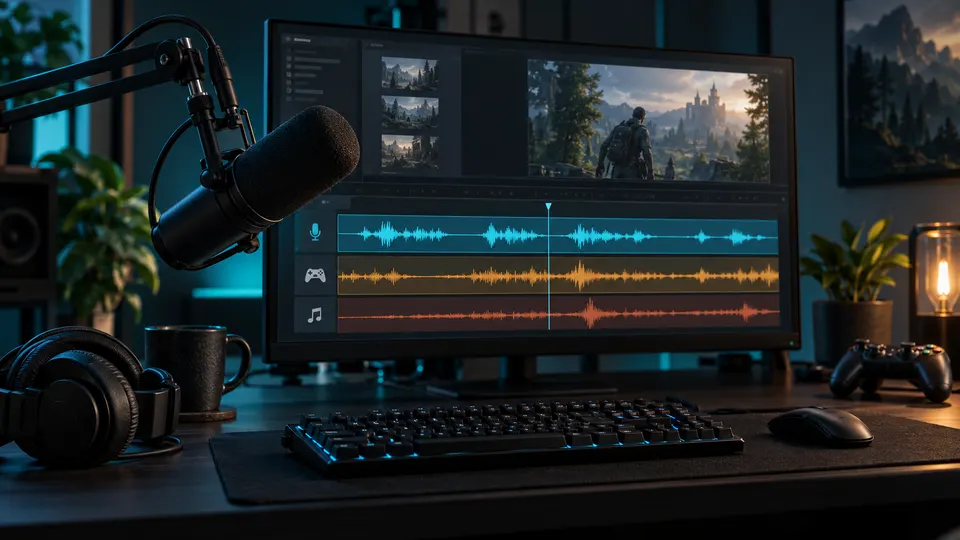
To remove background noise from an OBS recording, first decide whether you are preparing a new capture or repairing a saved file. For new recordings, improve microphone placement and test restrained noise suppression on the microphone source. For existing recordings, preserve the original and check whether a separate microphone track is available before cleaning the whole mix. A gate can quiet pauses but cannot remove a fan underneath speech. Keep any processed version only when the words remain clear and natural; filters applied during capture cannot simply be switched off later in the exported recording.
Quick answer: choose the right stage
The phrase “OBS noise removal” can describe two different jobs. Capture filters change the signal that OBS receives and records. Post-production works on audio already saved inside a recording. Changing a microphone filter today does not repair yesterday's file.
Start with the stage you can actually control. If you have not recorded yet, a brief microphone and routing test can prevent a difficult repair. If the session is finished, look for separate audio tracks or another microphone recording. If you only have a mixed export, protect the game, demonstration, and other sounds your viewers need.
| Your situation | Useful starting point | Main risk |
|---|---|---|
| Recording has not started | Mic placement and a short filter test | Quiet speech damaged by strong settings |
| Saved file has a separate mic track | Clean that track in an editor | Wrong track or sync changes |
| Saved file contains only one mixed track | Preview cautious localized cleanup | Game or tutorial sounds removed with noise |
| Words are already missing or distorted | Find a better source or rerecord | More processing cannot restore uncaptured detail |
This is a routing decision before it is a software decision. A microphone recording and a complete soundtrack should not automatically receive the same treatment.
Identify what is actually noisy
Listen to the untouched recording, not only an OBS monitoring feed. Choose a normal spoken sentence, a quiet phrase, and a pause. Note whether the unwanted sound stays fairly constant or arrives as short events.
A steady fan, air-conditioner wash, or mild hiss is a plausible noise-suppression target. Keyboard strikes, mouse clicks, notification sounds, and a passing conversation change quickly. A roomy tail after each word is reverberation. Harshness on loud syllables may be clipping or another overload, not background noise.
Also decide whether the sound belongs to the story. A game's footsteps or the sound of an application alert may be essential to the tutorial. They are not microphone noise merely because they occur while you speak. Write down the sounds you must keep before judging a cleaner version.
If typing is the main distraction, use the dedicated screen-recording keyboard-noise guide. It covers prevention and local edits rather than promising that a general denoiser will erase clicks beneath every word.
Before recording: improve the microphone signal
Place the microphone consistently near the speaker and away from the computer's loudest fan or keyboard when practical. Do not block ventilation or make unsafe equipment changes. A stable speaking distance makes it easier to choose settings that work for both normal and quieter phrases.
Record a short untreated test. Speak at normal volume, then deliver a quieter sentence, pause, and perform the real activity: type, move the mouse, play the game, or demonstrate the application. An empty-room test does not represent the finished recording.
Check for duplicate pickup too. If two active sources capture the same microphone, or the microphone also records sound from your speakers, the result can include echo or doubled audio. Inspect the source list and listen to one intended path at a time. Fix an accidental duplicate before trying to remove its consequences.
Avoid compensating for a distant microphone by simply raising everything. That raises unwanted sound as well as speech. The goal is a useful source before cleanup, not a visually impressive meter. Save your test so the filtered version can be compared with the untreated capture.
Test OBS noise suppression on the microphone source
The official OBS Noise Suppression guide describes the filter as a tool for mild background noise, including computer-fan noise. It also cautions that large amounts of noise are harder to address and that stronger processing can distort wanted sound.
Use that scope when evaluating your setup. Open the microphone source's filters, identify the suppression options available in your installation, and test one change at a time. Labels and available methods can vary with platform and installed components; do not copy a stranger's numerical settings without checking your own recording.
Record the same quiet and normal phrases after the change. Compare at similar speech loudness. Listen for missing consonants, rough breaths, unstable word endings, or a hollow voice. Keep the setting only if your actual test is easier to follow.
Leave unrelated sources alone unless you have a specific reason to process them. Putting speech cleanup on a game or a shared desktop-audio source can change sounds that were never the problem. A quieter overall mix is not enough evidence that you selected the correct input.
Use a gate for pauses, not speech overlap
A gate reduces the level of a signal when that signal falls below its opening or closing conditions. The official OBS Noise Gate guide describes its role during moments when you are not talking. It is not a source separator.
If a fan becomes audible whenever you speak, a gate has not failed to understand the fan. It has opened for the voice and allowed the mixed microphone signal through. Raising the threshold until the fan disappears can also remove quieter words.
Test sentence beginnings and endings, soft speech, and natural breaths. Abrupt silence followed by a burst of room noise can be more distracting than a modest continuous background. Relax the gate or leave it off when the sound becomes choppy.
For the broader distinction, read noise reduction versus noise gate for spoken video. Keep this OBS test focused on your input path and recorded result rather than building a long chain of unverified effects.
Record separate sources when later editing matters
Separate tracks can preserve control over microphone, desktop, and game sound. They do not remove noise by themselves, but they can let an editor clean the voice without altering every other source.
OBS's official multiple-audio-track recording guide explains source assignments in Advanced Audio Properties and enabling the intended recording tracks in Output settings. It also notes that ordinary players usually play one audio track at a time. Consult that guide for your current setup rather than assuming a playback test reveals every saved track.
Make a test in which each source produces a recognizable sound separately. Open the saved recording in your intended editor and confirm which tracks it exposes. Check that your planned complete mix is available as well as the individual sources you need. Do this before a long or unrepeatable session.
Separate tracks are not automatically untreated backups. A filtered microphone source routed to several tracks may still contain the same processing on each. If you need a raw safety recording, design and verify that recording path explicitly; extra track numbers alone do not establish it.
After recording: inspect the file before cleaning it
Duplicate the saved file and keep the original untouched. In your editor, inspect the audio streams or tracks actually present. A player may reveal only the default mix, while an editor may expose more tracks. If your tool does not support the recorded layout, seek a suitable import path before concluding that the microphone track is absent.
Solo each available track and label it by what you hear. Do not trust an ambiguous name such as “Audio 2.” Identify speech, game sound, desktop alerts, remote guests, and combinations. Listen through more than the opening seconds because source activity can change during the session.
If a separate microphone track exists, work on a duplicate of it. If only the combined soundtrack exists, use a small test section containing both speech and important non-speech sounds. Cleaning a mixed recording demands a stricter acceptance check than cleaning speech alone.
If the filtered recording has already lost a quiet phrase, finding the original microphone recording is more promising than another cleanup pass. Changing OBS settings affects future capture, not information already removed from the saved waveform.
Preview restrained post-production cleanup
For steady noise around speech, compare a cautious cleaned version with the original at the same time position and similar perceived dialogue level. Include a quiet phrase and a moment when the desktop or game sound matters. A cleaner pause does not compensate for a damaged explanation.
NoiseVanish's video-noise workflow is intended for steady background noise around spoken content. If you have an isolated microphone export, the audio-noise workflow may be the more focused route. Use only a file you are authorized to process and check the current format limits in the tool.
This is saved-file cleanup, not a NoiseVanish live OBS integration. It is not guaranteed keyboard removal, background-speaker separation, dedicated declipping, or a cure for severe room echo. Competing voices and other overlapping audio can remain or be damaged by processing.
Stop if the voice becomes metallic, watery, thinner, or less understandable. The metallic-speech troubleshooting guide explains why stacking stronger processing can make the result worse. Keep a small amount of natural noise when that better preserves the words.
Rebuild the mix and verify the final export
Put a cleaned microphone track back beside the unchanged sources you meant to preserve. Mute the original microphone where appropriate so the untreated and cleaned copies do not both play accidentally. Check a spoken cue against the picture and another cue near the end.
Listen across edit boundaries. A sudden change in room tone can make a repaired passage conspicuous even if its words are clearer. Use modest level adjustments and transitions as needed, and judge them in the actual surrounding mix.
Export a short test before the full video. Play it outside the editing application and confirm that speech, desktop audio, and game sound are all present at usable levels. An editor preview does not prove the correct track was selected for export.
Keep a simple note identifying the source track, treatment, and remaining limitations. This helps if a collaborator requests another version. Preserve the full original session rather than making the cleaned export your only surviving copy.
Frequently asked questions
Can changing OBS filters remove noise from an existing video?
Not retroactively. Filters change the signal during capture. A saved recording needs a separate editing or cleanup workflow, preferably using an isolated microphone track. Re-recording playback through a filter adds complexity and does not restore a raw source.
Why does fan noise return whenever I talk?
A gate can quiet pauses but opens for speech, allowing the fan in the same microphone signal through. Improve capture or test restrained suppression for the steady layer; do not raise the gate until quiet words vanish.
Will noise suppression remove every keyboard click?
No. Typing is changing transient sound and often overlaps speech. Improve microphone placement, reduce physical typing noise, and edit the worst isolated events. Stronger suppression can damage the voice before it removes every strike.
Why does the microphone sound fine in OBS but bad in the saved file?
Check whether monitoring, recording, and playback are using the same source and mix. Inspect duplicate sources, selected tracks, and processing. Diagnose the difference with short saved tests rather than assuming the denoiser is the cause.
Can NoiseVanish preserve all game audio while cleaning my voice?
Do not assume that for a finished mixed track. NoiseVanish is speech-focused steady-noise cleanup, not guaranteed separation of a microphone from game audio. An isolated microphone source provides a more controlled input, and the actual preview remains the acceptance test.
Bottom line
For OBS recordings, select the correct signal and stage before selecting a stronger effect. Prevent noise in the capture, preserve separate sources when possible, and clean only what needs treatment after recording. If steady noise remains around an authorized spoken file, try a NoiseVanish preview and keep the version that protects the explanation—not merely the quietest background.